


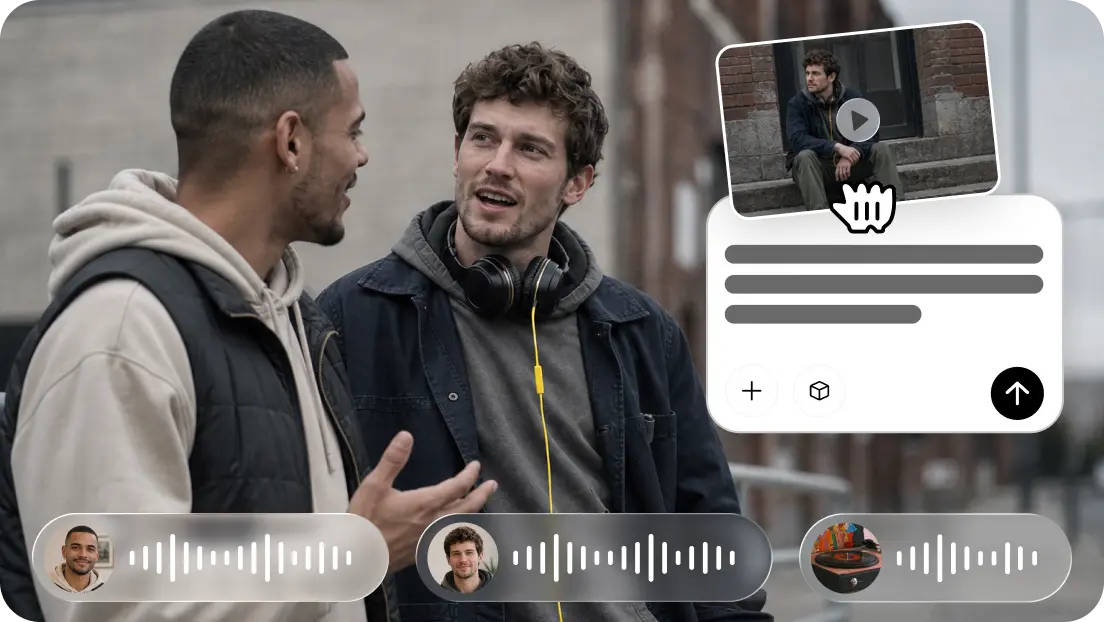
Previously recorded material may require new voices, dialogue translation, and new audio. With traditional dubbing, this means separate recording, sound design, mixing, and syncing. SeedAudio 2.0 decreases these distinctive activities by creating sound from video content. Pippit makes this functionality part of a single creative workflow. It is able to convert finished footage to localized AV material without changing the visual structure. This also reduces the amount of duplicate work done by individual production tools.
What SeedAudio 2.0 Can Do for Existing Videos
SeedAudio 2.0 is able to upload a video and use it as an input for audio generation. It has video-aware processing that takes into account the scene context, visible actions, pacing, and visual beats. This allows for more natural AI dubbing with voiceover, following the original footage.
Dialogue, environment, sound effects, and music can be included in the generated result. Pippit offers four modes: T2A, TA2A, TV2A, and TAV2A. These modes include text, audio, video, and audio/video inputs. Video-aware generation can minimize manual alignment of the spoken lines and visible actions. This is ideal for short films, advertisements, dramas, animations, and social videos. It also facilitates quicker experimentation in testing localized versions. SeedAudio 2.0 can generate up to 6 mins of audio.
Prepare an Existing Video for AI Dubbing
Begin with a clip that has distinct images and clear speech. Before writing the generation prompt for SeedAudio 2.0, check the original pacing. Record the speaker, significant movement, place, and environmental sounds, and musical needs. Specify the language to be used and the desired voice characteristics, such as rhythm, emotion, style, and accent. A detailed prompt relates audio instructions to what is shown on screen. Maintain approved and appropriate reference audio for production. When the source material is clear, the audio can follow the scene changes and actions of the characters. Decide if subtitles should be retained, altered, or added to the new language spoken.
Combine Video Context with Reference Voices
Reference audio may be used to inform the attributes of a particular character or speaker. When there are multiple speakers in the same footage, upload separate reference files. SeedAudio 2.0 allows for up to 6 reference Audio files. Each reference can be a different speaker, which helps to keep the voices separate. Instructions may indicate the rhythm, speaking manner, emotional expression, accent features, and non-speech expression. This is a way to keep characters' delivery patterns different in one scene. The use of reference material for recognizable real person voice imitation must have the appropriate permission. Ensure that uploaded voices are authorised for the purpose.
Steps to Dub Existing Videos Easily with Seedanceaudio 2.0 in Pippit
Step 1: Import Your Existing Video
- Sign up for Pippit using Google, TikTok, or Facebook.
- Open "More" from the left menu and select "Video generator".
- Choose an AI model, such as Dreamina Seedance 2.0.
- Add a detailed prompt describing the dubbing, speaker, voice changes, delivery, mood, effects, music, ambience, and text.
- Select the video length, language, subtitles, and aspect ratio.
- Click "+" to upload your existing video or reference audio from your device, phone, Dropbox, or a link. You can also choose available assets.
- Click "Generate".
Step 2: Generate the Dubbed Video
- Pippit generates the video from your prompt and reference media/audio after you click "Generate".
- AI handles transitions, pacing, captions, avatars, voice, lyrics, and visual enhancements.
- Review the generated draft and check the dubbing.
Step 3: Polish and Export the Dub
- Click "Download" at the top right to save the video. Use "Regenerate" for another version or "Edit more" below the video for customization.
- Edit captions and text, then adjust size, color, alignment, filters, voice, and effects.
- Add background music, remove backgrounds, control emotional timing, edit sync, and fine-tune visuals.
- Click "Export" in the top right.
- Select "Publish" to post directly to TikTok, Instagram, or Facebook, or click "Download" to save it with your preferred format, resolution, frame rate, and quality.
Six Dubbing Elements to Check After Generation
- Dialogue Synchronization: Ensure dialogue is in sync with the footage and fix any obvious timing problems.
- Speaker Consistency: Ensure that the voice of each character stays the same as the reference voice from one transition to the next.
- Language Accuracy: Check dialogue for meaning, clarity, context, and caption alignment.
- Ambient Continuity: Make sure environmental sounds are continuous and enhance each location.
- Effect Alignment: Check that there are prominent effects that correspond to the entries, movements, impacts, and actions seen on screen.
- Music Balance: Continue to balance music under dialogue, tweaking levels as required.
Use Timestamping to Improve Dubbed Timing
Timestamp functionality allows you to set dialogue, effects, or musical cues at a certain time in your AI MV project. This control is used for scenes with predictable timing, such as advertisements, narration, or dialogue-heavy scenes. Timing instructions tell where important information should sit rather than lines being repositioned over and over again. Link time with changes of scenes, character actions, and promotional beats. Accurate instructions can minimize the guesswork in the first-generation process. When necessary, users of Pippit can do further timing in the editor.
Refine Dubbing with Independent Audio Tracks
SeedAudio 2.0 allows you to separate dialogue, ambience, effects, and music onto separate tracks. Independent tracks allow the editor to change one layer without having to rebuild the whole composition. This is important if the original footage has complicated environmental sounds and/or strong musical content. Ambience can be subtle behind dialogue, which can be given more prominence. When competing with important lines or captions, effects can be reduced. There is also the possibility of music changing independently, while dialogue is generated. Specific changes enable quicker post-production and more controlled final mixes. Changes can be made to the edits without having to regenerate unaltered audio layers.
Dubbing and Localization Considerations
Dubbing is useful to localise a video into a different language, retaining the original visuals. Any new dialogue should reflect the author's intended meaning, tone, pacing, and character relationships. Subtitles should be reviewed separately as they must be in line with what has been spoken. Read translated lines for cultural appropriateness, clarity, and accuracy prior to publication. Review pronunciation, names, terms, and timing to ensure that they impact the audience. Reuse and/or transformation of copyrighted material must be done in a proper manner and with appropriate rights. Real-person voice imitation should be recognizable and only be used in accordance with the authorized real-person reference material. These are responsible and polished localization checks.
Conclusion
SeedAudio 2.0 makes a number of technical aspects of dubbing existing footage in Pippit easier. Video context, reference voices, timecodes, and individual tracks are helpful production controls. Pippit seamlessly integrates generation, editing, sync, and export in a single workflow. This makes it easier to produce localized AV for existing-video projects.










Discussion about this post